Learn how to snap pictures while shooting video on your iPhone or iPad without having to stop the recording session or download third-party camera apps.
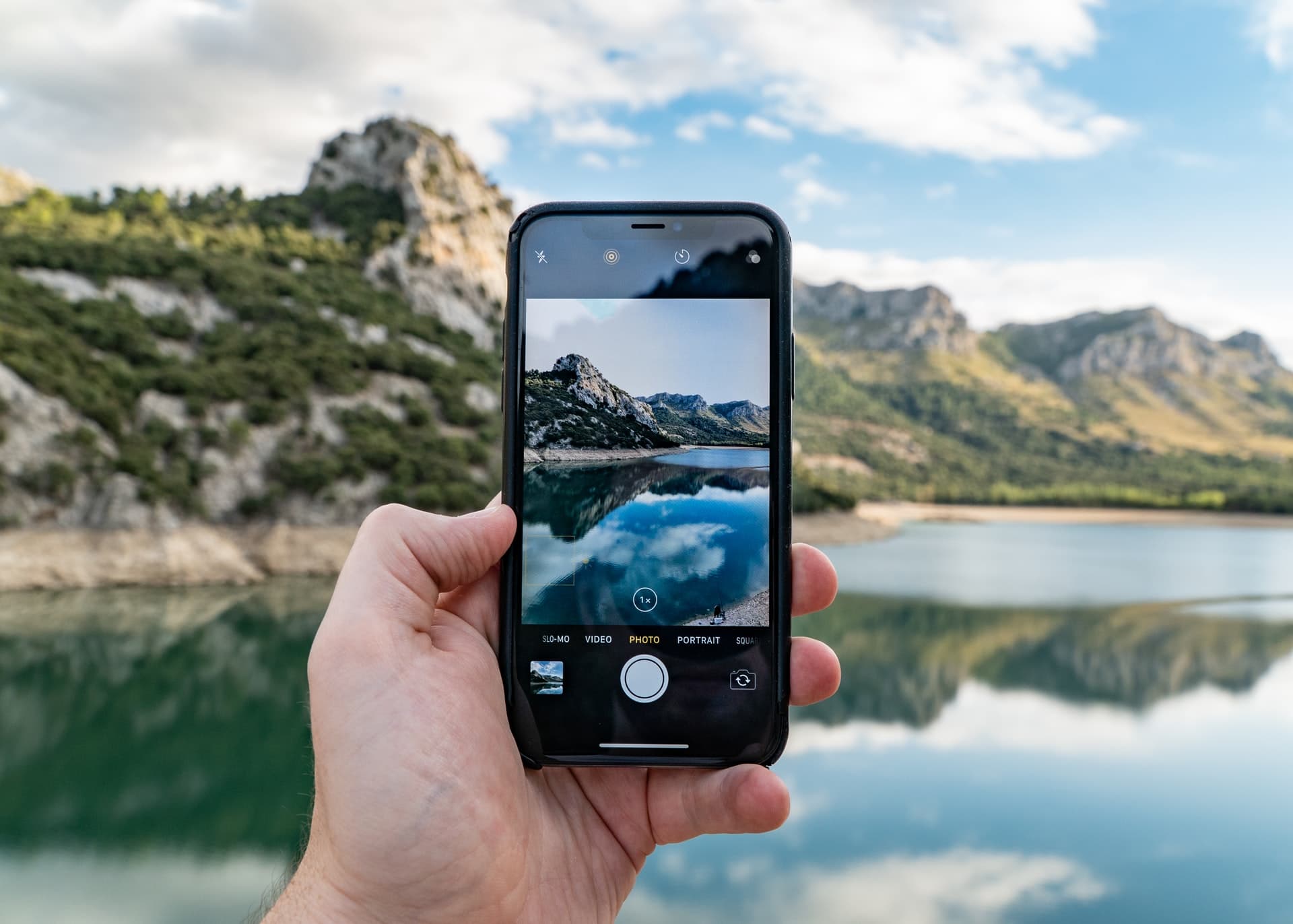
The Apple Camera app lets you take pictures during a video recording session, but they won’t match the quality and dimensions of your snaps taken in regular photo mode. Adjusting video recording quality doesn’t have any effect on image resolution in video mode.
Take pictures while shooting video on iPhone
- Open the Camera app and swipe to Video mode.
- Tap the red record button at the bottom or press either volume button to start recording a clip.
- Tap the white shutter button to take pictures while the video continues to record uninterrupted. You can tap the white shutter button repeatedly to take multiple photos. These images are saved in the Photo app (along with the video).

You can also take pictures while shooting a Slo-Mo video by following the same steps. Keep in mind that taking images while recording a Time-Lapse, cinematic, or spatial video isn’t possible. What you can do instead is grab a screenshot if you don’t mind the Camera app interface showing in the screenshot.
How’s this useful?
I use this feature quite a lot on my iPhone. If an interesting moment presents itself for a second or two during a video recording session, I hit the white shutter button without thinking twice; no need to swipe my way out of video mode. I would rather snap a lower-resolution photo than miss the perfect shot or export a still from the video later.
On a related note: How to record video on your iPhone without switching out of Photo mode